tisdag 22 januari 2019

Four quick ways to know your peers' opinions: Dot voting, Roman voting, Fists of five and 1-2-4-all

What do your team members really think?

Imagine you are part of a team with six members and that you have an idea of a better furniture arrangement in your team room. You visualise your idea by drawing a sketch of it on the whiteboard and show it to your team. You ask your five peers if they like the idea.

  • One says 'yes',
  • one nods his head vaguely,
  • one turns around to his computer and gets to work again,
  • one sits staring and says nothing,
  • one asks 'When?'
    You answer 'Today, tomorrow? Better sooner than later.'
    She answers 'Perhaps'.


Now what?
Do you have consensus?
Can you go on with your idea and start moving things around?

To find out more what your peers really think, you could ask them to participate in a quick Roman voting.

Roman voting

You can ask 'Do you want to rearrange the furniture according to my idea?' and the people in your team can answer with their thumbs:

  • Thumb up = Yes, absolutely, go ahead!
  • Thumb sideway = Don't know or don't care, works for me.
  • Thumb down = No, absolutely not!

After the vote you will get a better understanding of where people stand. And the persons who vote thumb down can get a chance to make their thoughts heard. Perhaps they can find the idea attractive enough with a few adjustments that better suit their needs?

Fists of five

Same concept as Roman voting, but with more nuance because you use all fingers on one hand to grade what you think.
  • Five fingers: This is a great idea. I wish I’d thought of it.
  • Four fingers: This is a good idea and has my full support.
  • Three fingers: I’m neutral. The idea is OK. Maybe there’s a better idea. Maybe not.
  • Two fingers: I don’t like this idea. I’d prefer we do something different.
  • One finger: This is a project-threatening decision. We need to pursue an alternative.


Dot voting

When there are multiple alternatives to choose among, each person can use a number of dots to distribute among the alternatives that person feels most for. The alternatives with the most dots are the alternatives that the team is most interested in.


1-2-4-all

A technique to try to reach consensus. 
  • Everyone starts to think about what his own thoughts about something are.
  • Then people pair up and try to reach consensus in their two person group.
  • Then the pairs pair up to get groups of four and try to reach consensus in that group
  • Then the whole group tries to reach consensus, by this time lots of pros and cons of different alternatives can have been discussed.

Two young people demonstrating a lively conversation

More info

My initial thought was to make this post about thumb voting only, but then I found this page that describes all four techniques in more detail and also has a decision tree as a help to choose when to use what technique. 

tisdag 15 januari 2019

How to compare text files using Visual Studio Code or Notepad++

The need to compare

Sometimes I've had a need to compare two text files against each other, for example

  • to make sure that they were exactly identical
  • or to spot a minor difference among lots of text 
  • or just to make sure that the differences made sense, like when comparing configuration files for test and production environments.
Back in the days when I was using TortoiseSvn, it was as easy as selecting the two files, right click and select "SVN Diff" from the menu, as described here. Nowadays I do something of the following alternatives.

Compare in Visual Studio Code

Suppose you want to compare two files, "First.txt" and "Second.txt". 
  • Open them in VS Code
  • Make sure the explorer in VS Code is expanded
  • In explorer, right click one of the files and select "Select for Compare"
  • Then right click the other file and select "Compare with Selected"
  • See the diff


Compare in Notepad++

To compare files in Notepad++ you need to install a plugin. This was easily done in the plugin manager before, but it is no longer there, so you have to download the plugin and copy it to the Notepad++ plugin folder.
  • Download the compare plugin
    I'm using the 32-bit Notepad++ so I downloaded the x86 version
  • Unzip to
    C:\Program Files (x86)\Notepad++\plugins
  • Start Notepad++, open the "Plugin" menu and look for "Compare"
  • Open the files in Notepad++, select
    Plugins => Compare => Compare
  • To close the comparison, select
    Plugins => Compare => Clear Active Compare


måndag 10 december 2018

Overuse Example of the Null Coalescing Operator (??) and Null-Conditional Operator (?.)

The sweet taste of syntactic sugar

From Wikipedia
In computer science, syntactic sugar is syntax within a programming language that is designed to make things easier to read or to express. It makes the language "sweeter" for human use: things can be expressed more clearly, more concisely, or in an alternative style that some may prefer.

Sometimes though, too much of the sweetness can become a mouthful.

Suppose you need this to guard against collections that are null or empty


but in the rush you head directly for the sweet style. Its shorter and doesn't repeat the variable name, but is it really more readable?


Last week I saw code like that. Since my own code was dependant on that method I really would like it to be correct. At a first glance it appeared to be buggy. So I tried it out in LinqPad and saw that it behaved totally correct and therefore felt a bit perplexed. Do you?

There's three cases
  1. collectionOfInts has at least one value
  2. collectionOfInts is empty
  3. collectionOfInts is null
I find the first and second case pretty straightforward, but I couldn't evaluate the null scenario in my head. For instance, I became unsure about the operator precedence between "!" and "??".

Unfolding

It was when I started to dissect the code it became apparent what it was that confused me.

I expanded
collectionOfInts?.Any() 

to
collectionOfInts == null ? null : collectionOfInts.Any()

and saw that I had a type conversion error. I had to cast null to a type.
collectionOfInts == null ? (bool?)null : collectionOfInts.Any()

Up until now I hadn't realized that the result from the "?."-operator was a nullable bool. Reading up on operator precedence I learned that the "!"-operator has much higher precedence than the "??". Those are two clues to what goes on here.

What type and value do you think the variable "result" will get in the code below?


As shown below, "result" is a nullable bool that is null! Not null is null!


This means that when collectionOfInts is null the code can be rewritten like this:
!collectionOfInts?.Any() ?? true 
!(bool?)null ?? true
(bool?)null ?? true
true


So, no sugar in this case?

After having discussed the code with the author and realizing that he also had trouble understanding what happens in the null case, I say "no"! The sugar is there to make the code more readable, but apparantly it doesn't in this case.

Make your own sugar

There is a solution though, that I find easiest to read, but was a bit surprising when I first saw it, and that is:
if (collectionOfInts.IsNullOrEmpty())

The thing that surprised me was that the author believed that you could call a method on an object that is null. But you kind of can. If the method is an extension method.

If you make an extension method like the one below it also works for strings, since a string implements IEnumerable<char>


Is it worth using the extension method and risking surprising a reader of the code?
People seem to disagree about that :)

https://stackoverflow.com/questions/790810/is-extending-string-class-with-isnullorempty-confusing
https://stackoverflow.com/questions/14196593/why-is-mystring-isnullorempty-not-built-into-net
https://stackoverflow.com/questions/8582344/does-c-sharp-have-isnullorempty-for-list-ienumerable

onsdag 28 november 2018

My first project in Python: a sudoku solver

Background

It was a weekend a few weeks ago when my youngest child saw a sudoku in the paper and wanted to solve it. It was a hard one. And when they are hard I can't keep it all in the head and need to write remaning possible numbers down, but most often I don't find room for that. And for hard sudokus you sometimes have to guess for a number and try that out. When that guess turns out to be wrong, it is no fun at all to backtrack to how the sudoku board looked like before the guess. Both problems can be solved by a computer though! :)

Last time I wrote a sudoku solver was back in 2006 when learning Ruby. I've looked in all my stashes for that code, but it seems to be lost forever. This time the language that I've been looking at besides C# was Python, but so far I hadn't written anything else than short exercises, so it seemed like a good fit to try using it for a small project like this.

I don't even dare to google for sudoku solvers, there probably exist thousands of them, but I want to do this small project in my own little bubble.

Used techniques


Knockout

This is what the board looks like. The nine squares on the board will be called "big squares", and the dots represents the squares that will be called just "squares" or "small squares".
In this example the user has entered two known values, a 9 and a 5. 


When running the solver in knockout mode it will knock out the known values from the list of possible values for all other squares. In the example below the value 9 has been knocked out from all squares inside the yellow marking which contains:
1. the big square that the 9 is in,
2. the row the 9 is in
3. and the column the 9 is in

The same goes for the 5, which affect all squares inside the red marking.

When there is a list of numbers in a small square, it is a list of values that still is valid to try out for that small square for solving the sudoku. Therefore, the lists of possible values inside the yellow marking all lacks the number nine, and all the lists inside the red marking lacks the number 5. Small squares that are inside both the yellow and red marking lacks both 9 and 5.


When the knockout runs and a value is knocked out from a square which value list suddenly only contains a single value, that square has become solved by the algorithm. Another round of knockout will be run for that square so its new value will be knocked out from all the squares the solved square affects.

Find unique value

When no more squares can be solved using the knockout technique, the next thing to look for is a list which contains a value that is unique in its big square. In the example in the image below, the square inside the red marking is the only square inside its big square (yellow) that still has the value 7 as a possible value. Therefore the square can be solved with that value and might kick off a new round of knockouts. This example won't though


Brute force

When no more can be done by the other two techniques, it's guessing time. For this, the solver goes looking for the first square with the lowest count of remaining possible numbers. In the board below it is the square marked with red that contains possible numbers 3 and 7.


The solver will begin to try with the number 3. So it sets the square to that value and then runs the "knockout" and "find unique value" routines. 
For this guess the board ends up looking like the board in the top of the image below. This board state is a fail because of the solved numbers the big square in the middle of the bottom row, there are two occurences of the number 8.

That erroneus state makes the solver understand that it has to backtrack to the last guess and try out the other value, in this case number 7.


Some sudokus requires multiple squares to be solved using the brute force routine. In the example above the printout says "Brute forcing 4 squares", which means that three other squares has gotten their value by guessing before the processing of the current square.

The code


The solution is a bit unfocused because I never decided if I wanted to build a complete solver or just a helper that could help us a little bit when trying to solve hard sudokus during the weekends. 

Another reason the code might seem strange is that I wanted to investigate the functional side of Python, but didn't get any relevation. Which isn't too strange I just found out, reading the answers in the link below. 

Over all I would say that Python isn’t very functional at all, and if you try to force a functional style into python it doesn’t feel very natural, and you will have to break out of it each time you want to use a third party library.

So writing a solver in F# or Haskell might be material for another project, but currently I'm a bit fed up with sudokus :)


torsdag 22 november 2018

Do you know the keyboard shortcuts for the kanban board in TFS?

Here's a list with lots of keyboard shortcuts for TFS and Azure DevOps (former Visual Studio Team Services former Visual Studio Online).

The shortcuts below are the ones I've been missing the most. Sometimes it takes quite a bit of patience to move a work item around the board, especially if there is scrolling involved. I'll try them out first thing at work tomorrow!


And there seems to be a rich text editor coming up!
https://developercommunity.visualstudio.com/content/idea/365534/advanced-rich-text-editor-toolbar.html

tisdag 13 november 2018

Alter template for "Create and initialize field" in Visual Studio to get fields prefixed with underscore

I've got a fresh installation of Visual Studio and this time I haven't added Resharper. And so far I don't miss it! I haven't been hammering out that much code, but it seems like the built in code assistent in Visual Studio has become way better, because I usually, almost immediately, greatly miss the extra help I get from Resharper.

What I've already found though, is that its auto generation of fields from parameters to the constructor needs some tweaking. Well, if you like to prefix your fields with an underscore that is.

In case you didn't know, you can position the marker on a new constructor parameter and press "Ctrl + ." to open up the Quick Actions and Refactorings menu.
Then you can choose to Create and initialize field and get presented with a preview of what the result will look like.
The images below shows what it looks like with the default setting.


Visual Studio automatically creates the field "arg1" and assigns it with the constructor parameter.


I prefer fields to be prefixed with underscore to make it possible to immediately distinguish fields from local variables when reading the code, which I think is a great help when trying to get a grip of what the code does. And it seems to be the standard for .net core.


To change the template for this, go to 
Tools -> Options -> Text Editor -> C# -> Code Style -> Naming


Click Manage naming styles. Add a naming style like the one below.


Add a new row by clicking the plus. 
Select Private or Internal Field as Specification.
Select your new naming style as the Required Style.


Click OK. 
I had to restart Visual Studio make the update work.

Now it looks like this:


And the result is:


Of course Stack Overflow had the remedy when I became tired of renaming my auto generated fields and removing "this.". So thanks for that kspearrin and Maciek! :)

onsdag 7 november 2018

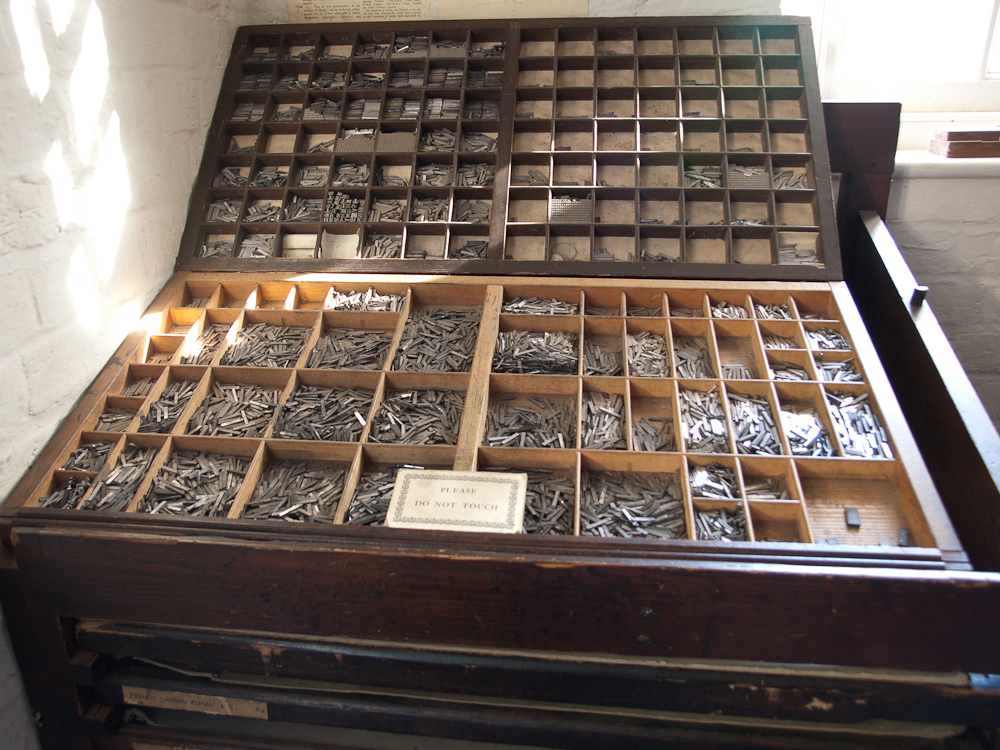
Fun fact: Origin of "upper-case" and "lower-case"

UPPER-CASE and lower-case

These terms originated from the common layouts of the shallow drawers called type cases used to hold the movable type for letterpress printing. Traditionally, the capital letters were stored in a separate shallow tray or "case" that was located above the case that held the small letters.


Info from https://en.wikipedia.org/wiki/Letter_case

Original image from https://upload.wikimedia.org/wikipedia/commons/1/1a/Upper_case_and_lower_case_types.jpg